// use cases

Real work, step by step.

Five everyday jobs in the terminal, done in the Bramo alpha. The project in the images is a small Node API with a real bug and a real failing test.

// debugging

Fixing a failing test.

The shop's checkout total is off by a cent. Here is the whole loop without leaving the window.

The test fails, and you can see where

npm test exits with code 1. Its block turns red, shows the exit code and how long it took, and puts a Re-run button on the header. The sidebar row says the same, so you'd spot it from another session too.

The failed npm test block: four tests pass, WELCOME10 takes 10% off before shipping fails with 54 !== 53.97.

Find every mention

⌘F and type WELCOME10. Matches are grouped under the command that printed them, here the one npm test block with two matches.

Search for WELCOME10 shows 2 of 2, grouped under the npm test block, with both matches highlighted.

Read the code next to the output

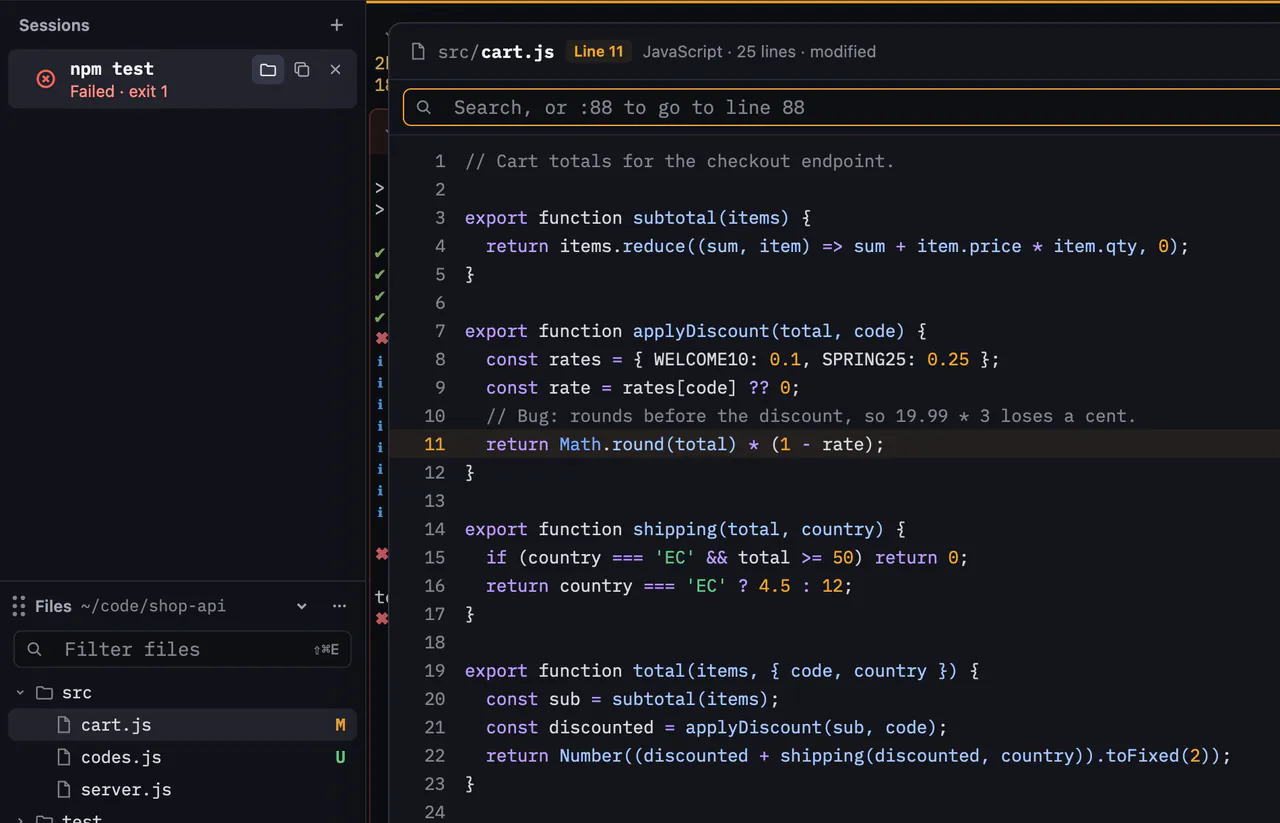
In the files panel, cart.js carries an M for modified. Press Space on it and Peek opens it with syntax colors. The rounding happens before the discount, on line 11.

Peek on src/cart.js with line 11 highlighted: return Math.round(total) * (1 - rate).

Fix it and run the test again

Fix the line in your editor. Then select the failed block and press Re-run. The old output collapses to one line, and the new block carries a re-run tag. Five of five pass.

Re-run types the command at your prompt instead of running it behind your back, so your shell runs it with your aliases and it lands in your history.

The failed block collapsed, the nvim block, and the re-run npm test block with all five tests passing.

// sessions

Many sessions and splits, one window.

A dev server, a test run, an agent, an ssh session and your notes. Bramo keeps them in one list and tells you which one needs you.

Split for the things that run beside you

Keep the dev server in a split next to your tests with ⌘D. The split shows up under its session in the sidebar, and its row gets a dot when it prints something you haven't seen.

Each split has its own command editor, and the focused one has an amber line on top.

The full window with five sessions in the sidebar and two splits: tests on the left, the dev server on the right.

Jump without the mouse

⌘1 to ⌘9 go to a session, ⌥⌘ and an arrow move between splits, and the palette finds a session by name. Close one by mistake and ⇧⌘T brings it back in the same folder.

The palette listing split actions with their shortcuts.

Close the app, keep the work

Your shells run in bramod, a small background service that used about 1 MB of memory in our tests. Quit Bramo, install an update, open it again, and every session is where you left it, still running, with its blocks. If the computer restarts, each split comes back in its place with its earlier output above a line that says when the shell started again.

The sessions sidebar with every session and its state.

// agents

Running coding agents.

Agents like Claude Code and Codex run for minutes, then stop to ask you something. Bramo tells you which one is waiting. It doesn't ship an agent of its own.

Working or waiting, at a glance

Start an agent in any session. Bramo knows it's an agent by its program name: claude, codex, gemini, aider, opencode, amp, goose, cursor-agent, copilot, crush or qwen. While it prints, the row says Agent working. When it goes quiet and waits for an answer, the row turns violet and says Agent waiting for you.

The agent runs in a normal terminal, so its own interface looks exactly as its makers built it.

The sidebar with claude marked Agent waiting for you and codex marked Agent working.

Check its work next to it

When an agent says it changed a file, the files panel already shows it with its git status. Peek it, or search what the agent printed with ⌘F, without leaving the session.

On the roadmap: a desktop notification when an agent waits while you're in another app.

Peek showing a changed file next to the files panel with git marks.

// reading code

Reading code without opening an editor.

Sometimes you only need to look at a file. Opening an editor for that, then finding your way back to the shell, is more steps than it should be.

The panel follows your shell

cd somewhere and the files panel moves with you. Switch sessions and it shows that session's folder. Type in its filter to find a file by name, and press Space to Peek it.

Peek searches inside the file with ⌘F, jumps to a line, and opens it in your editor with ⌘O when you do want to change it. Drag a file onto the command editor to insert its path, quoted for your shell.

// switching

Switching from another terminal.

You spent years on your current setup. Bramo starts from it.

Import, preview, keep

Settings has Import from… for Ghostty, iTerm2, Alacritty, WezTerm and Windows Terminal. It finds their config files, shows what it will bring over, and writes it to bramo.toml.

Your shell, prompt and dotfiles need no changes. Bramo adds its shell integration when it starts the shell, without editing your files.

The import dialog in settings, listing a Ghostty config found on this computer and what will be imported.

Get an invite to the alpha.

Invites go out in waves. People whose setup matches what we are building first go first.

1Leave your email.
2Answer five quick questions about your setup, if you want a better spot.
3Confirm the email we send you.

We use your email for the invite and a few product updates. Privacy note.