// features
Blocks, sessions, files and search in one terminal.
Every command gets its own block. Sessions and splits live in one sidebar, the files panel follows your shell from folder to folder, and the palette and search reach everything else.
// blocks
Every command in its own block.
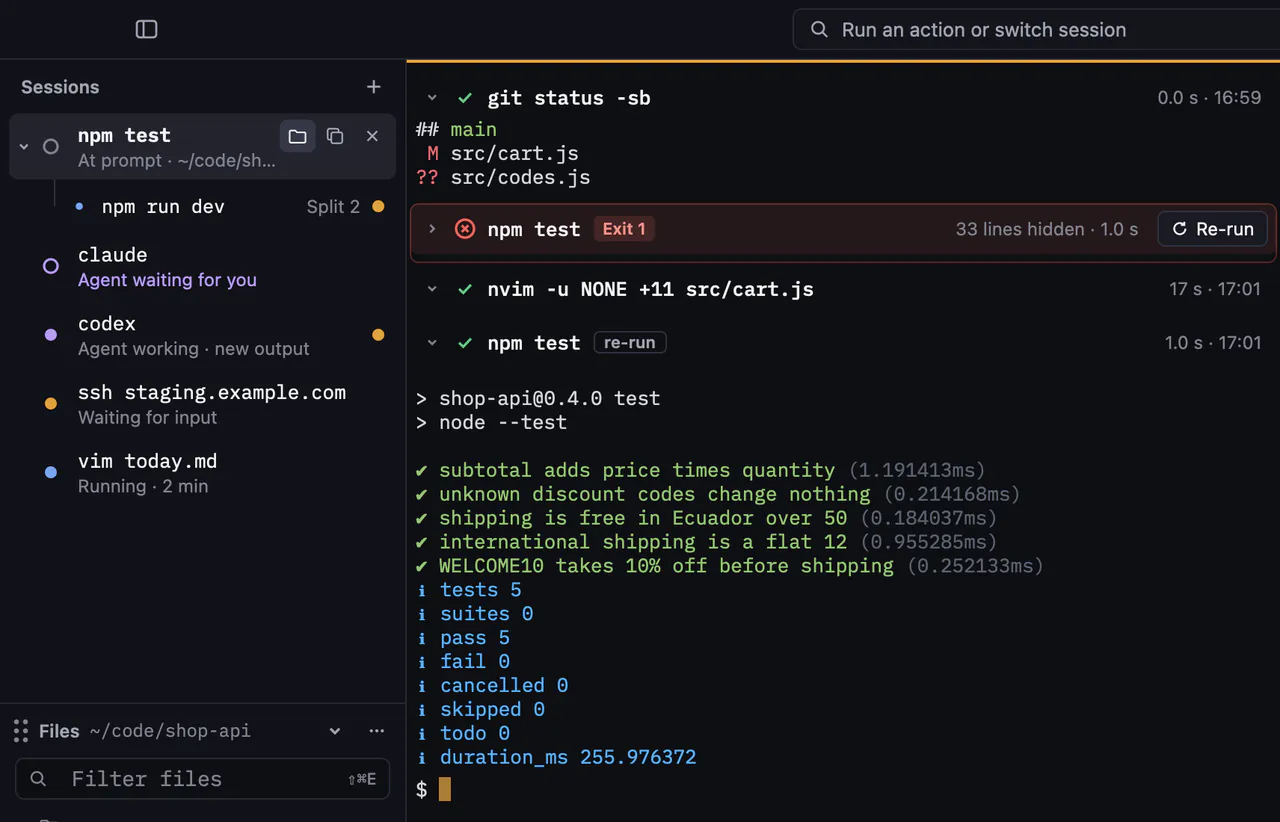
Bramo's shell integration marks where each command starts and ends, without touching your dotfiles. Each block shows its status, duration and time. Hover or select it to see the folder it ran in and its actions.
- A failed block turns red and always shows Re-run. A killed one names the signal and a likely cause, such as memory running out.
- ⌘↑ ⌘↓ move between blocks, and Enter collapses or expands one.
- ⇧⌘C copies the command and ⌥⌘C the full output, without selecting anything.
- Works in zsh, bash, fish and PowerShell. vim, htop and other full-screen programs still get a normal terminal.

// command editor
Type commands like you type anywhere else.
Each split has a real text editor at the bottom. Click to place the cursor, select with the mouse, undo, and press ⇧Enter for a new line. Commands get syntax colors. Enter sends the text to your shell, so aliases and history work as usual.
- ↑ opens your history filtered by what you typed, from this window and your shell's history file.
- When a program asks for a password, the editor steps aside and nothing is shown or saved.
- Prefer your shell's line editor? ⌘I switches to it. Bramo switches by itself when your shell uses vi mode, and tells you why.

// sessions and splits
All your shells in one list.
Sessions sit in the sidebar with their splits grouped under them. Each row names what runs there and its state: running, failed with its exit code, waiting for input, at the prompt or exited.
- ⌘D splits right, ⇧⌘D splits down. A new split opens in the same folder.
- ⌘1 to ⌘9 jump to a session. F2 renames it, and you can drag rows to reorder them.
- Closed one by mistake? ⇧⌘T reopens it in its folder, with its name and place.
- Shells run in a small background service,
bramod. Quit or update Bramo and they keep running; open it again and their blocks are still there. After a reboot, each split comes back in its place with its old output above a separator.
// files and peek
The folder you're in, always in view.
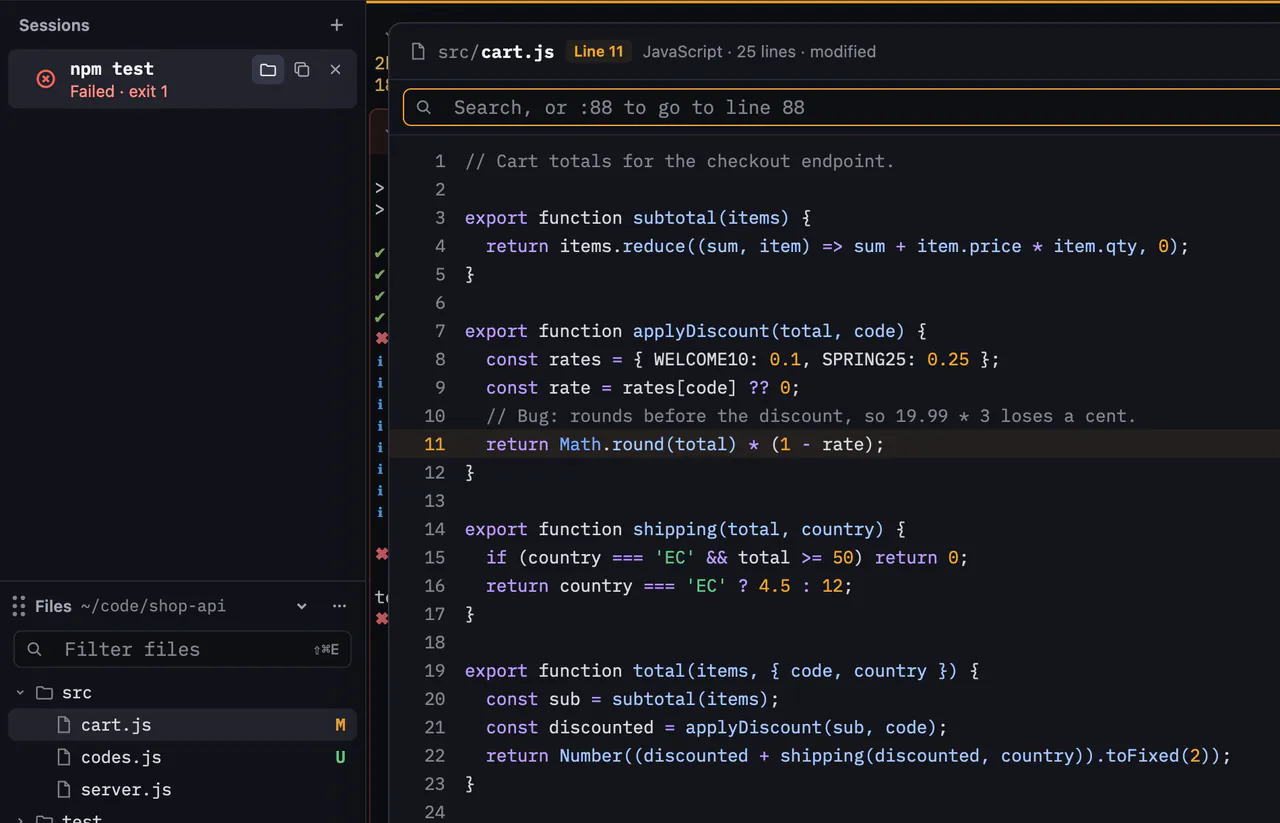
The files panel shows the folder of the session you're in and follows every cd. Git status is on each file, and ignored files are dimmed. Click a file, or press Space, and Peek shows it with syntax colors, search and jump to line.
- Drag a file onto the command editor to insert its path, quoted for your shell.
- Double-click a folder to
cdinto it. Bramo types the command at your prompt, where you can see it. - Open in your editor with ⌘O. Peek is read-only on purpose.
- Keep the panel under the sessions or move it to the right side.
// palette
Every action, one keystroke away.
⌘K opens the palette. Type a few letters to find any action, an open session or the folder of another session. Each action shows its shortcut, so you learn them as you go.
- With nothing typed, it lists the actions you used last.
- No match? It offers to search the scrollback for what you typed.
- Matches Spanish names too when the app runs in Spanish.

// search
Find it in the scrollback, by command.
⌘F searches the output of the split you're in as you type. Matches are grouped under the command that printed them, so you know where each one came from.
- Case and regular-expression toggles, with the count of matches.
- ⌘G and ⇧⌘G step through them.
- The first match in 100,000 lines arrived in 32 ms on our 2019 test laptop.

// settings and import
Bring your setup. Keep it in a text file.
Settings live in bramo.toml, which you can keep in your dotfiles. The settings screen shows the line each control writes, and saving the file applies it at once. A typo keeps your last good settings and points at the line.
- Import fonts, colors and keys from Ghostty, iTerm2, Alacritty, WezTerm or Windows Terminal, with a preview first.
- Light and dark themes, or follow the system.
- English or Spanish, with
localeunder[general].

// in your language
Spanish from day one.
Every label and message in the app has an English and a Spanish version. One line in bramo.toml picks the language. Layouts leave room for Spanish, which runs about a quarter longer.

// on the roadmap
What we're building next.
We have designed and planned each one. The alpha doesn't include them yet.
Clickable paths and links
Click src/cart.js:11 in any output to open the file at that line.
Workspaces by repository
Sessions grouped by the git repository they run in, with pinned and throwaway sessions.
Environment bar
Git branch, Kubernetes context and cloud profile per session, with a warning when you point at production.
Desktop notifications
A notification when a long command ends or an agent waits, while you're in another app.
More in Peek
Markdown, JSON, CSV, images and PDF previews.
Signed installers and updates
Install without system warnings, from Homebrew, winget and Linux package managers, with automatic updates.
Get an invite to the alpha.
Invites go out in waves. People whose setup matches what we are building first go first.
We use your email for the invite and a few product updates. Privacy note.
- Shortcuts on this page are the macOS ones. Windows and Linux use Ctrl+Shift where macOS uses ⌘, and the palette opens with Ctrl+Shift+P because Ctrl+K belongs to your shell.